Running DEXi/DEXiWin on Linux using Wine
DEXi and DEXiWin are interactive desktop programs for DEX modeling. Currently, they are available only for the Windows operating system; there are no special versions for Linux or Mac. Nevertheless, they can be ported and run there.
In this document, we describe our experience with installing and running DEXi and DEXiWin in Linux distributions Ubuntu 24.04 and Mint 21.3 using Wine. Wine is a Linux software compatibility layer that provides the environment and functionality for running Windows programs.
There are multiple distributions of Linux that differ greatly in terms of pre-installed software, and mechanisms for installing and configuring additional software. The instructions provided here were tested on Ubuntu 24.04 and Mint 21.3, assuming a fresh installation of the latest version of WineHQ. While the instructions for other Linux distributions may be similar, they may involve different commands and require additional considerations. For instance, when there is an existing Wine instalation that cannot successfully run DEXi or DEXiWin, how to upgrade Wine without affecting the current Windows applications.
The following components are needed to succesfully run DEXi and DEXiWin on Linux:
- Windows executable files: Files with the
.exeextension that can run directly in Windows, but not on Linux. - Properly configured Wine installation. DEXi and DEXiWin require two components
installed in Wine:
- Mono: Support for Microsoft's .NET Framework, needed for running interactive WinForms apps;
- Gecko: A web engine for rendering HTML content.
- Optional: At least one printer installed on Linux. This enables displaying DEXiWin reports in a native way rather than using HTML.
Executables
DEXi/DEXiWin executables are distributed with the corresponding installers or portable archives.
For convenience, we include them below in the .tar and .zip archives.
All executables are self-sufficient and do not require any other DEX-related components.
Each archive also includes a data/ directory with two DEX models,
Car.dxi and EmploySmall.dxi, suitable for testing.
| Archive | Executable | Description | Archive MD5 |
|---|---|---|---|
| DEXi.5.06.EN.tgz | DEXi.exe | DEXi, English version | 734f2e17c4f11bea0fb22a9bed017775 |
| DEXi.5.06.EN.zip | DEXi.exe | DEXi, English version | 22d15868d928bf5f1508301940ba4c9f |
| DEXi.5.06.SI.tgz | DEXi.exe | DEXi, Slovene version | 55a9bb6b47c6386b29b0cc42d2c1b956 |
| DEXi.5.06.SI.zip | DEXi.exe | DEXi, Slovene version | 9ae1fc628d34d1ac846bd7f0fef6df9e |
| DEXiWin.1.3.tgz | DEXiWin.exe | DEXiWin (English only) | 222bc89be19056da61132f9836c0ad7a |
| DEXiWin.1.3.zip | DEXiWin.exe | DEXiWin (English only) | ac6844cbff856e94c38fd802081cda6a |
Hereafter we assume that all the needed executables have been extracted to
~/dex/, and the .dxi models to ~/dex/data/.
Wine
Let us first check if Wine is already installed on the Linux system:
wine --version
If installed, the program responds with its version number,
otherwise installation instructions are typically displayed.
Running DEXi and DEXiWin
If Wine is already installed, we may want to check if it can already run the programs:
wine ~/dex/DEXi.exe
wine ~/dex/DEXiWine.exe
Or even better, we may supply the model name as an argument:
wine ~/dex/DEXi.exe ~/dex/data/Car.dxi
wine ~/dex/DEXiWine.exe ~/dex/data/Car.dxi
If the program(s) appear to run normally, you are done. Otherwise, you need to decide whether to reconfigure or upgrade the current Wine installation, or remove it and start afresh. Hereafter, we assume the latter.
Installing Wine
In terms of supported Wine versions, many Linux distributions (including Linux Mint) lag behind. Pre-installed versions or versions offered by standard installation commands are often old. For instance, at the time of this testing, the standard Linux Mint 21.3 installation supported only an old Wine version 6.0. As it turned out, it was able to run DEXi (with some gliches), but failed to run DEXiWin, which is more recent and technically more demanding.
For this reason, we opted for the latest version of WineHQ (version 11.0 at the time of writing). Installation commands may depend on the operating system. For Ubuntu 24.04, the following commands are suggested:
		sudo dpkg --add-architecture i386

		sudo mkdir -pm755 /etc/apt/keyrings

		wget -O - https://dl.winehq.org/wine-builds/winehq.key | sudo gpg --dearmor -o /etc/apt/keyrings/winehq-archive.key -

		sudo wget -NP /etc/apt/sources.list.d/ https://dl.winehq.org/wine-builds/ubuntu/dists/noble/winehq-noble.sources

		sudo apt update

		sudo apt install --install-recommends winehq-stable
For Linux Mint 21.3, the Ubuntu codename noble should be changed to jammy
(twice!) in the sudo wget command above:
sudo wget -NP /etc/apt/sources.list.d/ https://dl.winehq.org/wine-builds/ubuntu/dists/jammy/winehq-jammy.sources
In general, the codenames of other distributions can be obtained by:
grep UBUNTU_CODENAME /etc/os-release
After these steps, Wine should be able to run both DEXi and DEXiWin using the "Running" commands above. Normally at runtime, Wine automatically detects additional components (Mono and Gecko) that are needed by the apps and requests your confirmation to install them in the background:
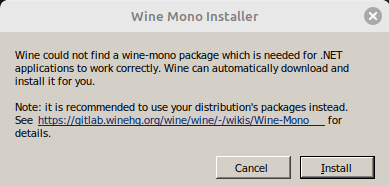
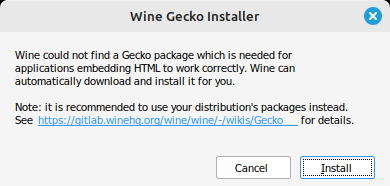
If this does not happen, you may need to consult Wine documentation for installing these components manually.
Installing a Printer
In order to display reports in its a native way, DEXiWin requires at least one printer
installed on the system.
We suggest using CUPS-PDF, which does not need a physical printer, but "prints" documents to PDF files. Installation:
sudo apt install cups-pdf
Installing a printer is optional. DEXiWin still works without installed printers, but can only display reports using HTML
User Feedback
Please send any comments about these instructions and generally about your experience
with DEXi and DEXiWin on Linux to dex@ijs.si.